
TaskLauncher Plugin
The TaskLauncher plugin lets you create time-based devices in Jeedom to automatically trigger actions, commands or scenarios.
It can manage:
- ⏰ alarms
- 🕒 clocks
- 📅 scheduled events
- ⏳ countdowns from a date
- ⏱️ second-precision timers (Node.js daemon)
- 🔔 reminders with countdown and urgency alerts
✨ Overview
TaskLauncher can be used for simple reminders as well as more advanced automations.
Usage examples:
- launch a morning scenario at a fixed time
- display a clock on a design or dashboard
- schedule an action at a specific date
- trigger a command with delay or one-time execution
⚙️ Installation
Installation follows the standard Jeedom plugin process.
1️⃣ Install from the Market
- Install the plugin from the Jeedom Market.
- Activate the plugin.
- Open the plugin page in:
Plugins → Organization → TaskLauncher and activate the plugin
2️⃣ Access the plugin
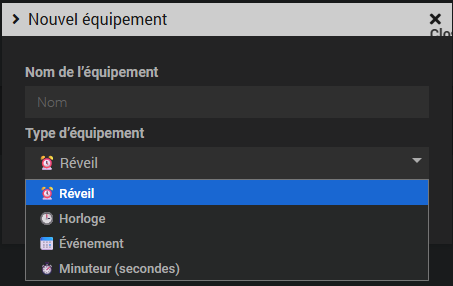
Once the plugin is activated, you can create a new device and choose its type.
🧩 Device types
⏰ Alarms
Alarms let you launch one or more actions at a defined time, with day management and manual activation.
Default widget

Alternative widget

Design Alarm Widget
Modern widget with SVG progress circle, inline H±/M± buttons, days of the week and ON/OFF toggle.

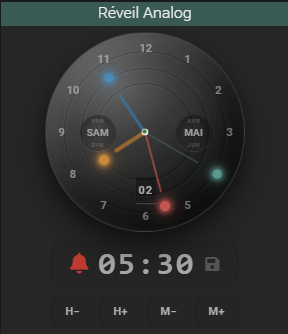
Analog Alarm Widget
Analog clock with 4 hands (hours, minutes, seconds, alarm), circular tracks, luminous dots and 3D dome effect. Compatible with Light and Dark themes.
🕒 Clocks
Clocks let you display the time on the dashboard or in a design.
Classic clock widget

Digital clock widget

⏱️ Timer (seconds)
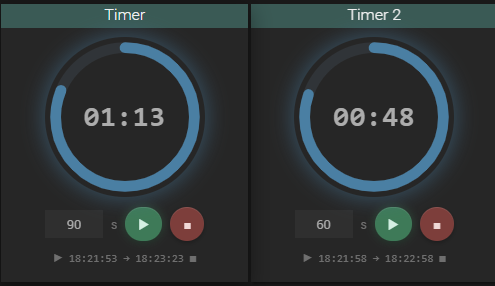
The Timer (seconds) lets you launch a precise countdown in seconds, driven by a dedicated Node.js daemon (more responsive than Jeedom's minute-based crons).
Automatically created commands
| Command | Type | Description |
|---|---|---|
Timer State | Binary info | 1 = timer running, 0 = stopped |
Start | Action slider (1–86400) | Starts the countdown for the specified duration in seconds |
Stop | Action | Stops the timer immediately |
Configuration
| Setting | Description |
|---|---|
| Default duration (seconds) | Pre-filled value when starting the widget |
The Start command accepts a value in seconds (1 to 86400). Example: send 300 for a 5-minute timer. The Timer State command can be monitored to trigger an action at the end of the countdown.
This device type requires the TaskLauncher daemon to be active. The daemon starts automatically with the plugin if Node.js is installed on the system.
🔔 Reminder
The Reminder widget lets you track an important deadline directly from the dashboard or mobile app. It displays a real-time countdown with a colored progress ring, and can trigger Jeedom actions as the deadline approaches or is reached.

The ring changes color automatically based on remaining time:
| Time remaining | Color |
|---|---|
| More than 24 h | 🟢 Green |
| Less than 24 h | 🟠 Orange |
| Less than 1 h | 🔴 Red |
| Less than 5 min | 🔴 Pulsing red |
| Expired | ⚫ Gray |
From the widget, two buttons allow direct action:
- Snooze +1h: postpones the alert by one hour
- Mark as done: closes the reminder
General configuration
| Setting | Description |
|---|---|
| Task title | Name displayed on the widget |
| Deadline | Target date and time in YYYY-MM-DD HH:MM format |
| Recurrence | Automatically reschedules after the deadline: None, Daily, Weekly, Monthly, Yearly |
| Show creation date | Shows or hides the "Created on" line on the widget |
| State | Allows resetting a completed reminder to pending |
With recurrence enabled, the reminder automatically reschedules after each deadline — ideal for regular appointments, monthly payments, etc.
Pre-deadline alerts
Choose when you want to be alerted before the deadline:
| Option | Trigger |
|---|---|
| D−7 | 7 days before |
| D−1 | The day before |
| H−1 | 1 hour before |
| At deadline | At the exact moment (enabled by default) |
Multiple options can be checked simultaneously.
Actions to execute
Define the Jeedom actions or scenarios to launch at each alert time. These actions execute at the moments defined above (D−7, D−1, H−1, at deadline).
Examples: send a notification, turn on a light, launch a scenario.
Automatic snooze
If the reminder has expired and no one has responded, automatic snooze postpones the alert without manual intervention.
| Setting | Description |
|---|---|
| Duration | Postpone delay: 30 min, 1 h, 2 h, 4 h, 8 h, 24 h or 48 h |
| Maximum | Number of automatic postponements (unlimited or 1 to 10) |
📅 Events
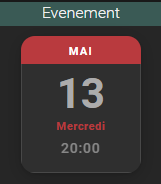
Events let you launch actions or scenarios at a specific date.
🚀 Creating a device
When adding a new device, you choose the desired type: alarm, clock or event.
Available types
- ⏰ Alarm
- 🕒 Clock
- 📅 Event
- ⏱️ Timer (seconds)
- 🔔 Reminder
Once created, the device appears in the list and can be configured according to its usage.
🛠 Alarm configuration
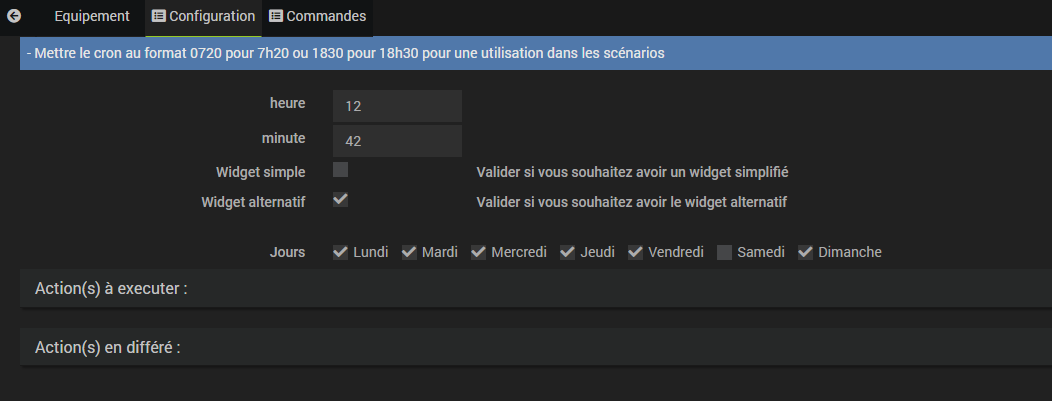
General configuration
Configuring an alarm is simple:
- set the execution time
- choose the repeat days
- select the actions or scenarios to launch
- save then activate the alarm if needed
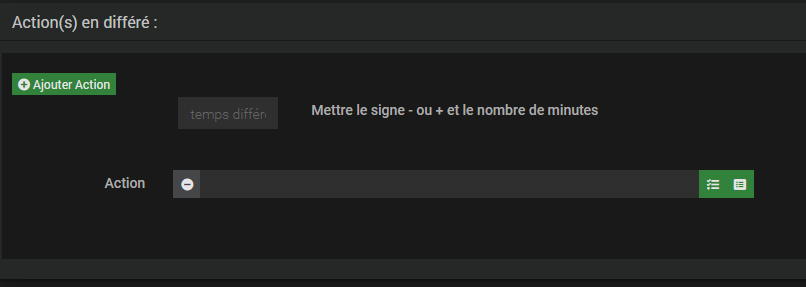
Delayed actions
It is also possible to define delayed actions.
🎛 Available widget commands
From the widget, several actions are directly accessible.
You can notably:
- enable or disable the task
- change the execution time
- modify the actions
- immediately launch the actions
- set a delayed launch (in minutes)
On the alternative widget, you can also change:
- hours
- minutes
- days
- alarm activation state
You must not activate a device between the delayed time and the effective time, as this would immediately trigger the planned actions.
🔗 Using in scenarios
TaskLauncher can be used in other Jeedom scenarios.
For example, you can:
- enable an alarm
- disable an alarm
- change its execution time
Time format
The expected format is:
0720  →  07:20
1830  →  18:30
Jeedom functions
You can also use Jeedom functions in your scenarios.
#time# + rand(0,100)
In this example, the task will be executed at the scenario's current time, plus a random delay between 0 and 100.
🖥 Clock display
The Clock type lets you add a visual clock on the dashboard or on a design.
Available options:
- size selection
- show or hide seconds
- classic or digital style depending on the widget used
📆 Event management
Events let you schedule an execution at a specific date.
📱 Interface and widgets
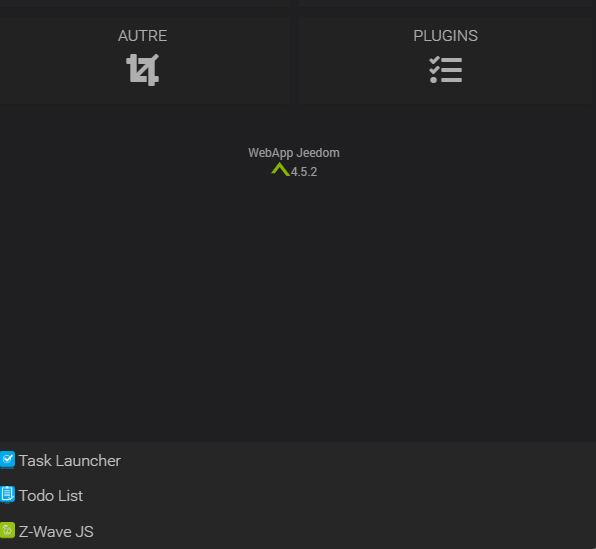
Depending on your configuration, devices can be displayed on the dashboard, in a design or in a dedicated plugin view (mobile or desktop).
For dedicated views, you can enable/disable them in the general configuration.

For the desktop view:

For the mobile view:
🎨 Light and Dark themes
All TaskLauncher widgets automatically adapt to the active Jeedom theme (Light or Dark) via the jeedom-theme-utils.css file.
No configuration needed: colors, backgrounds, borders and shadows adjust automatically based on the theme set in Administration → Interface → Theme.
💡 Usage tips
- always check the configured time before activation
- test your actions with a manual launch if needed
- use scenarios to enrich automations
- use explicit device names
✅ Compatibility
The plugin is compatible with:
- Jeedom 4.4+
- Debian 11 to 13
- PHP 7.4 / 8.x
🎯 Conclusion
TaskLauncher is a practical plugin for centralizing time-based triggers in Jeedom, whether for alarms, clocks or scheduled events.
With a simple configuration and several available widgets, it easily integrates into your daily automations.