
The Lumina plugin lets you centralize and control your lighting in Jeedom with a simple logic: declare your lights, define time periods, then let Lumina execute the right actions automatically.
It is designed to manage:
- the lights of a room or usage
- time periods (morning, evening, night…)
- the timer with automatic turn-off
- lighting ambiances
- color, color temperature and brightness level
- a brightness threshold via a lux sensor command
- OFF mode to disable all automation
- Suspended mode to turn off lights and freeze automation until all occupants have left
Lumina does not control any specific protocol. It relies on the existing Jeedom commands from your light devices.
✨ How it works
Lumina acts as a lighting orchestrator on top of your existing devices.
The recommended flow is:
- Create a Lumina device (a room, a zone)
- Declare the lights available in that device
- Configure the binary actuators (presence detectors, buttons…)
- Create time periods with their color, temperature, level and timer duration
- Lumina listens to actuators and triggers the right actions based on the current period
When an actuator switches to 1 (presence detected):
- Lumina checks if the timer is armed
- It checks the brightness threshold (lux) if configured
- It identifies the active period based on the time
- It turns on lights with the period settings (color, temperature, level)
- It starts a countdown (period duration)
When all actuators switch to 0 (no more presence):
- The countdown starts
- On expiration, Lumina executes end actions (turn off, etc.)
🔧 Prerequisites
Before using Lumina, you need:
- A working Jeedom installation (version 4.4 minimum recommended)
- At least one light device already created in Jeedom
- Valid light commands, for example:
- On (action command)
- Off (action command)
- Set color (action command)
- Color temperature (action slider command)
- Set level (action slider command)
Lumina works with any light plugin as long as Jeedom commands are available:
- Matter
- Hue
- Zigbee
- Z-Wave
- Wi‑Fi
- MQTT
- other Jeedom-compatible light plugins
🚀 Plugin installation
1️⃣ Install from the Market
- Go to Plugins → Plugin Management → Market
- Search for Lumina
- Click Install
- Activate the plugin
2️⃣ Access the plugin
Once installed:
- Go to Plugins → Comfort → Lumina
- The home page shows your existing Lumina devices
- Click Add to create your first device
➕ Create a Lumina device
From the plugin page, click Add to create a new device.
Each Lumina device typically corresponds to:
- a room (Living Room, Office, Bedroom)
- a zone (Hallway, Dressing Room, Entrance)
- or a specific usage (Evening ambiance, Night detection)
🗂 Configuration tabs
The Lumina device is organized into 4 tabs:
| Tab | Purpose |
|---|---|
| Device | General settings and real-time status panel |
| Timers | Actuators, lux, lights and time periods |
| Ambiances | Creation and management of lighting ambiances |
| Commands | List of automatically generated commands |
⚙️ Device tab
This tab contains the general settings (name, parent object, category, enable/visible) as well as a status panel updated in real-time.
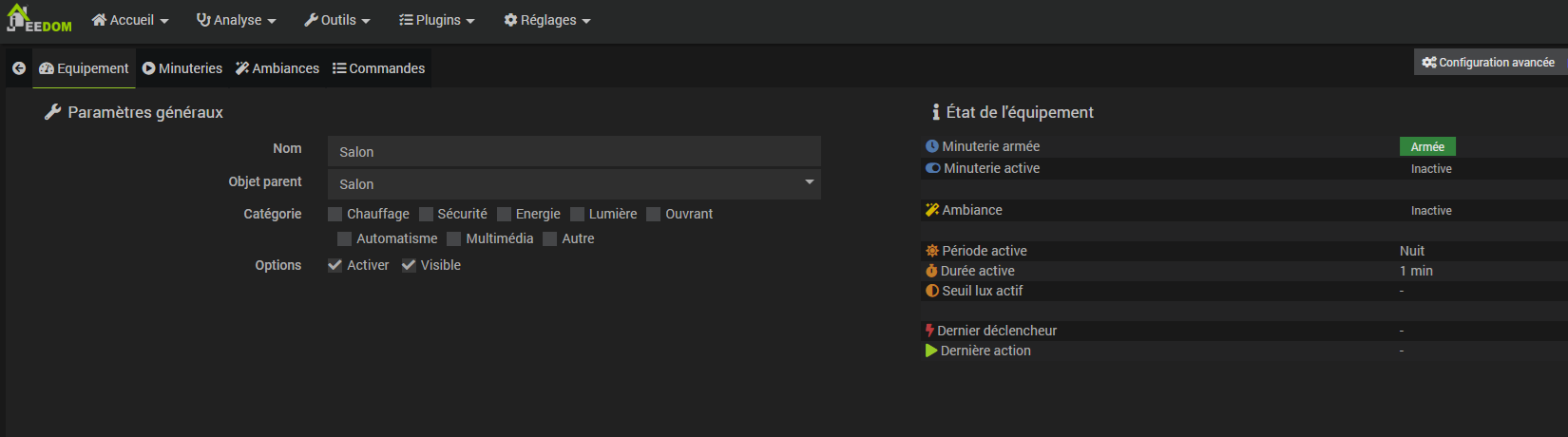
The status panel shows:
- Timer armed: yes/no
- Timer active: running or not
- Ambiance: currently active ambiance
- Active period: name of the current period
- Active duration: timer duration of the current period
- Active lux threshold: threshold of the current period
- Last trigger: actuator that triggered the last action
- Last action: last action executed
🔌 Timers tab — Actuators
Binary actuators are the timer triggers.
These are Jeedom binary info commands that switch to 1 when presence is detected and to 0 when it stops.
Examples of compatible actuators:
- Motion detector (PIR)
- mmWave presence sensor
- Physical or virtual button
- Virtual command from a scenario
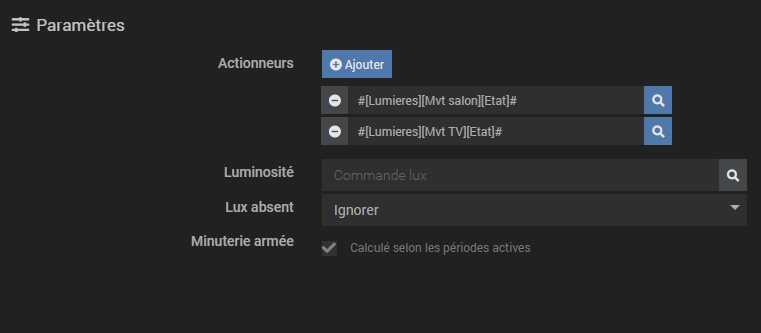
Multi-actuator logic:
- If one actuator switches to 1 → lights turn on (if currently off)
- If an actuator switches to 1 while lights are already on → the countdown is cancelled (reset)
- The countdown only starts when all actuators are at 0
This allows using multiple detectors in the same room without premature turn-off.
☀️ Timers tab — Brightness (Lux)
Lumina can use a numeric brightness info command to condition triggering.
If the ambient brightness is greater than or equal to the active period's threshold, Lumina does not turn on the lights.
Example: threshold of 50 lux → if the room is already at 80 lux, Lumina does nothing.
Behavior if the lux command is absent or unreadable:
| Option | Behavior |
|---|---|
| Ignore (default) | Lumina triggers anyway without lux check |
| Block | Lumina does not trigger if lux is inaccessible |
💡 Timers tab — Lights
The Lights section allows declaring the lights managed by this Lumina device's timer.
Lumina offers an automatic add system: by clicking +, you choose a Jeedom device and Lumina scans its commands to automatically detect:
- the On command
- the Off command
- the Set color command
- the Color temperature command
- the Set level command

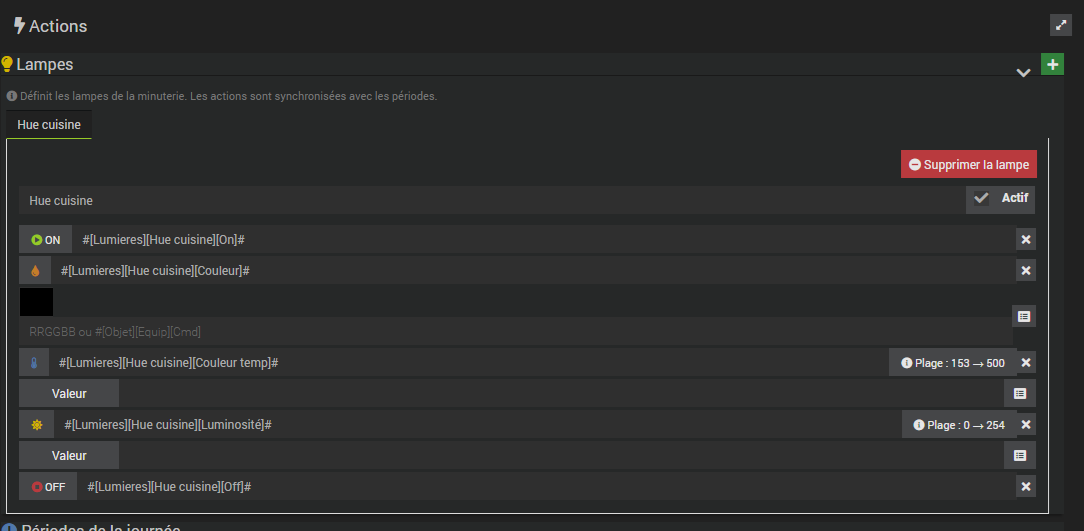
Lumina must use the light's action commands.
Info commands like Color or Temperature (read-only) must not be used as actions.
- ✅ Set color (action)
- ❌ Color (info)
🎨 Color, color temperature and level
For compatible lights, Lumina sends in addition to the On command:
- a color (hexadecimal value, e.g.
#e51515) - a color temperature (slider value in Kelvin depending on the target plugin)
- a brightness level (slider value as percentage)
These values are defined per period in each light's configuration.
🕒 Timers tab — Time periods
Periods are at the heart of Lumina's logic.
Each period defines different behavior based on the time of day:
| Field | Description |
|---|---|
| Name | Period identifier (e.g. morning, evening) |
| Active | Enable or disable the period without deleting it |
| Start | Start time in HH:MM format |
| End | End time in HH:MM format |
| Duration | Timer duration in minutes (default: 5 min) |
| Lux threshold | Brightness threshold specific to this period |
| ON Actions | Color/temp/level override for each light |
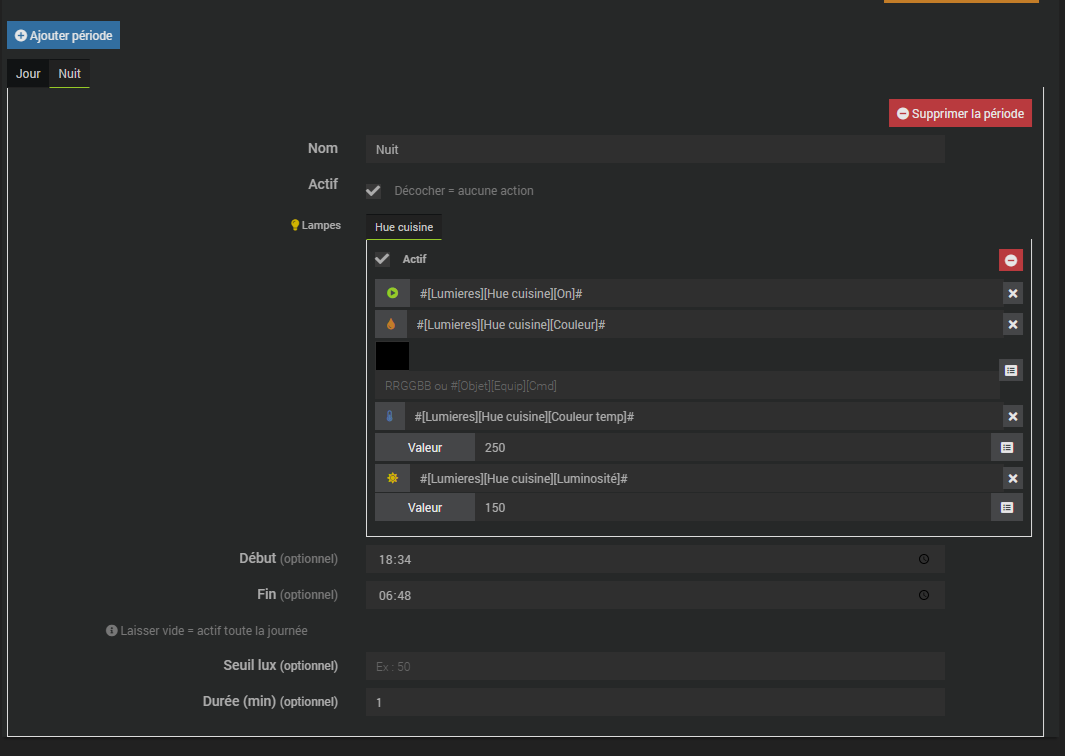
Period validation rules:
- A period without time (empty start and end) is active all day — only one allowed
- Time periods cannot overlap
- Periods spanning midnight are supported (e.g. 22:00 → 06:00)
- Time periods take priority over the "all day" period
If no period is configured, Lumina considers the device as permanently active (ideal for a hallway or cellar).
🌅 Automatic sunrise/sunset generation
Lumina can automatically generate periods based on sunrise and sunset by entering your latitude and longitude.
⏱ The timer
The timer is Lumina's triggering engine.
Principle
- An actuator switches to 1 → Lumina turns on lights according to the period
- The actuator switches to 0 → the countdown starts
- On expiration → end actions are executed (turn off)
Arming / Disarming
The timer can be armed or disarmed independently.
- Armed: Lumina reacts to actuators normally
- Disarmed: Lumina ignores actuators (lights don't turn on automatically)
Arming is managed via the Enable timer and Disable timer commands, usable in scenarios or from the widget.
Automatic reset
If an actuator switches back to 1 while lights are already on (countdown in progress), Lumina cancels the countdown — lights stay on as long as presence is detected.
🚫 OFF mode
OFF mode blocks all Lumina automation for a period.
When OFF mode is activated:
- The timer is ignored (even if armed)
- Actuators don't trigger anything
- Useful at night to avoid turning on lights during a bathroom visit
It is managed via the Enable OFF mode and Disable OFF mode commands.
⏸ Suspended mode
Suspended mode turns off lights and freezes all automation until the room is empty, then automatically resumes.
When the Suspend command is executed:
- Lights are turned off immediately
- Lumina blocks actuators (no automatic turn-on)
- Lumina continuously monitors presence detectors
- As soon as all detectors are at 0 (empty room), Lumina automatically switches back to Auto mode
This mode is particularly useful for:
- Forcing turn-off when someone has turned on lights manually and you want to start fresh
- Turning off and waiting until everyone has left before resuming automation
- Avoiding disturbing someone still present while preparing the final turn-off
OFF mode blocks automation indefinitely (until manual deactivation). Suspended mode lifts automatically when the room empties — no intervention needed.
It is activated via the Suspend command.
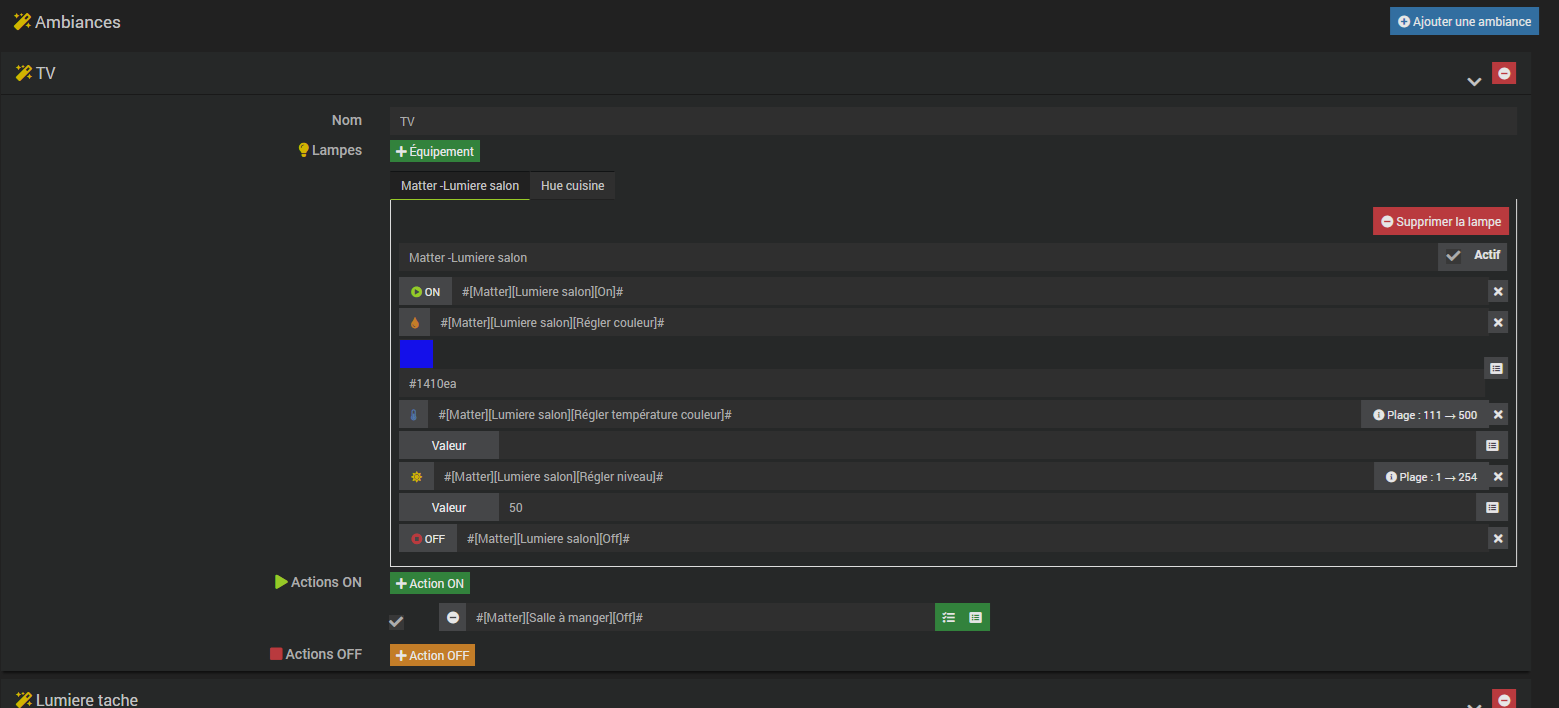
🎭 Ambiances tab
Ambiances let you define named lighting scenes, independent from periods.
An ambiance contains:
- a name (e.g. Movie Night, Romantic Dinner)
- lights with their own color/temperature/level settings
- additional actions on activation (onAmb)
- additional actions on deactivation (offAmb)
Ambiance behavior:
- Activating an ambiance takes priority over the timer
- If an ambiance is active, binary actuators are ignored
- Deactivating the ambiance returns control to the timer
Ambiances are activated/deactivated via the Enable ambiance and Disable ambiance commands, usable from scenarios, the widget or a virtual remote.
📊 Commands tab
Lumina automatically generates a set of commands when saving the device.
Info commands
| Command | Type | Description |
|---|---|---|
Timer state | binary info | 1 = timer armed, 0 = disarmed |
Current mode | string info | timer, ambiance or none |
OFF state | binary info | 1 = OFF mode active |
Suspended state | binary info | 1 = Suspended mode active |
Ambiance state | binary info | 1 = an ambiance is active |
Active period | string info | Name of the current time period |
Active duration | numeric info | Duration in minutes of the current period |
Active lux threshold | numeric info | Lux threshold of the current period |
Action commands
| Command | Description |
|---|---|
Enable timer | Arms the timer |
Disable timer | Disarms the timer |
Enable OFF mode | Activates OFF mode (block automation) |
Disable OFF mode | Deactivates OFF mode |
Suspend | Turns off lights and blocks automation until all detectors are at 0, then resumes Auto mode |
Enable ambiance | Activates an ambiance (selection by list) |
Disable ambiance | Deactivates the current ambiance |
These commands are directly usable in:
- scenarios (conditions, actions)
- virtuals
- interactions
- other Jeedom-compatible plugins
📱 Dashboard and Mobile widget
Lumina has a built-in widget for the dashboard and mobile view.
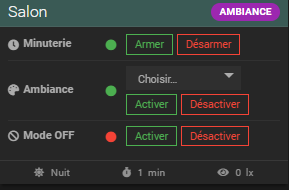
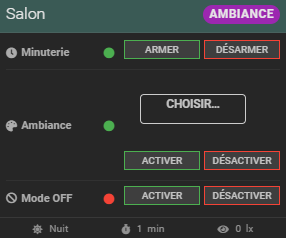
The widget displays:
- The mode badge (Timer / Ambiance / None) with color according to state
- The timer state (armed / active) with Arm / Disarm buttons
- The ambiance state with selector and Enable / Disable buttons
- The OFF mode state with Enable / Disable buttons
- At the bottom: the active period, duration and lux threshold
🧪 Using in scenarios
Lumina commands are naturally used in Jeedom scenarios.
Condition examples
// Check if timer is armed
[Living Room][Lumina][Timer state] == 1

// Check the active period
[Living Room][Lumina][Active period] == "evening"

// Check if OFF mode is active
[Living Room][Lumina][OFF state] == 1
Action examples
// Arm the timer at sunset
[Living Room][Lumina][Enable timer]

// Disarm the timer at night
[Living Room][Lumina][Disable timer]

// Activate an ambiance
[Living Room][Lumina][Enable ambiance] → value: "Movie Night"

// Activate OFF mode
[Living Room][Lumina][Enable OFF mode]

// Suspend (turn off and wait until room is empty)
[Living Room][Lumina][Suspend]
💡 Practical usage examples
Dressing room
- Light: simple white bulb
- Period: all day, duration 1 minute
- Actuator: motion detector
- Result: turns on at entry, turns off 1 minute after leaving
Living room evening
- Lights: color bulbs
- Periods:
- Morning 07:00–12:00: cool white light, level 100%
- Afternoon 12:00–18:00: neutral light, level 80%
- Evening 18:00–23:00: warm light, level 40%
- Ambiance: "Cinema" with very dim red light
Night hallway
- Light: white bulb
- Periods:
- Day 07:00–22:00: level 100%, duration 5 min
- Night 22:00–07:00: level 10%, duration 2 min
- Actuator: motion detector
- OFF mode: activated via scenario during deep sleep hours
Office with brightness
- Light: smart bulb
- Period: 08:00–20:00, lux threshold 200
- Actuator: mmWave presence sensor
- Result: turns on only if the room is dark (< 200 lux)
🧠 Best practices
For a clean and reliable configuration:
- Verify that auto-detected commands are indeed action commands and not info commands
- For color lights, point to Set color (not Color)
- Start with a single light and a single period before expanding the configuration
- Use explicit period names (morning, evening, night) to ease reading in scenarios
- If your lux is unstable, prefer the Ignore behavior over Block
- Use OFF mode in a scheduled scenario rather than manually
- The status panel (Device tab) is your best diagnostic tool
🔍 Troubleshooting
The timer doesn't start
- Check that the timer is armed (Timer state = 1)
- Check that OFF mode is inactive (OFF state = 0)
- Check that no ambiance is active (Ambiance state = 0)
- Check that the active period exists and is enabled
- If a lux threshold is configured, check that current lux is below the threshold
Lights don't turn on with the right color
- Check that the color command points to Set color (action) and not Color (info)
- Check that the color value is filled in the light configuration for the relevant period
The countdown doesn't start
- Check that all actuators are at 0 before the countdown starts
- Check the plugin logs (debug level) to follow the logic
❤️ Conclusion
The Lumina plugin lets you build clear, flexible and smart lighting logic in Jeedom, without multiplying complex scenarios.
In summary:
- Declare your lights
- Configure your actuators (detectors)
- Define your periods with color, duration and lux threshold
- Let Lumina do the rest
It's a solid foundation for centralizing all lighting behaviors of a room into a single maintainable device.