
✨ Description
This plugin lets you retrieve remote calendars (Apple, Google, Nextcloud, CalDAV…) or local ones. You can interact with these calendars and trigger actions based on events.
⚙️ Plugin configuration
After downloading the plugin, simply activate and configure it.
This plugin does not allow modifying or editing a remote calendar.
In Debug mode, the plugin is very verbose. It is recommended to use this mode only when diagnosing a specific issue.
It is not recommended to leave the plugin in Debug permanently, especially if Jeedom runs on an SD card.
Once diagnostics are complete, set the log level back to Error.
The plugin allows you to:
- retrieve a calendar via URL (Apple, Google, Nextcloud, Synology, CalDAV) and interact by creating events
- retrieve a local ICS calendar and integrate it into Jeedom
- create events linked to a calendar with the same name, and trigger actions at the start or end of the event (so by creating an event on your iOS or Google calendar, it can launch actions in Jeedom)
- have a configurable dashboard widget
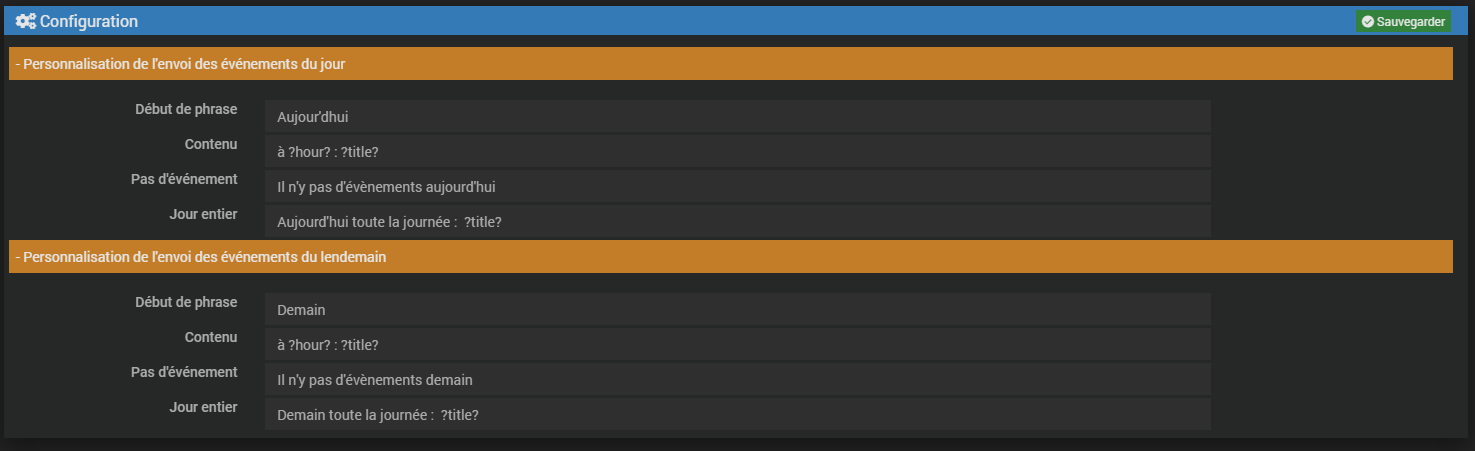
?title? : returns the event title ?hour? : returns the event start time
You need to configure the fields for information output with the today and tomorrow commands of a calendar
(commands to use later via TTS, notification…). Use ?title? for the event title and ?hour? for the time.
Once activated, go to:
Plugins → Organization → ICS Calendar

Click +

You can then add:
- a calendar
- an event
- a widget (a kind of virtual device)
📅 Calendars
Add a calendar (ICS URL)
Create a new device and enter the calendar URL.
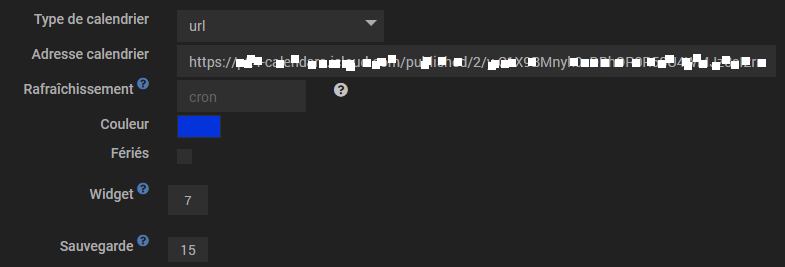
Settings:
- Color: the color of events in the calendar view
- Holidays: if an event exists in the calendar, the day will be considered a holiday (see the commands documentation)
- Widget: the number of days shown on the widget
- Mini-Cal: displays the widget as a monthly grid (instead of the FullCalendar list)
- Days: the number of days to store
You can then navigate through the tabs.

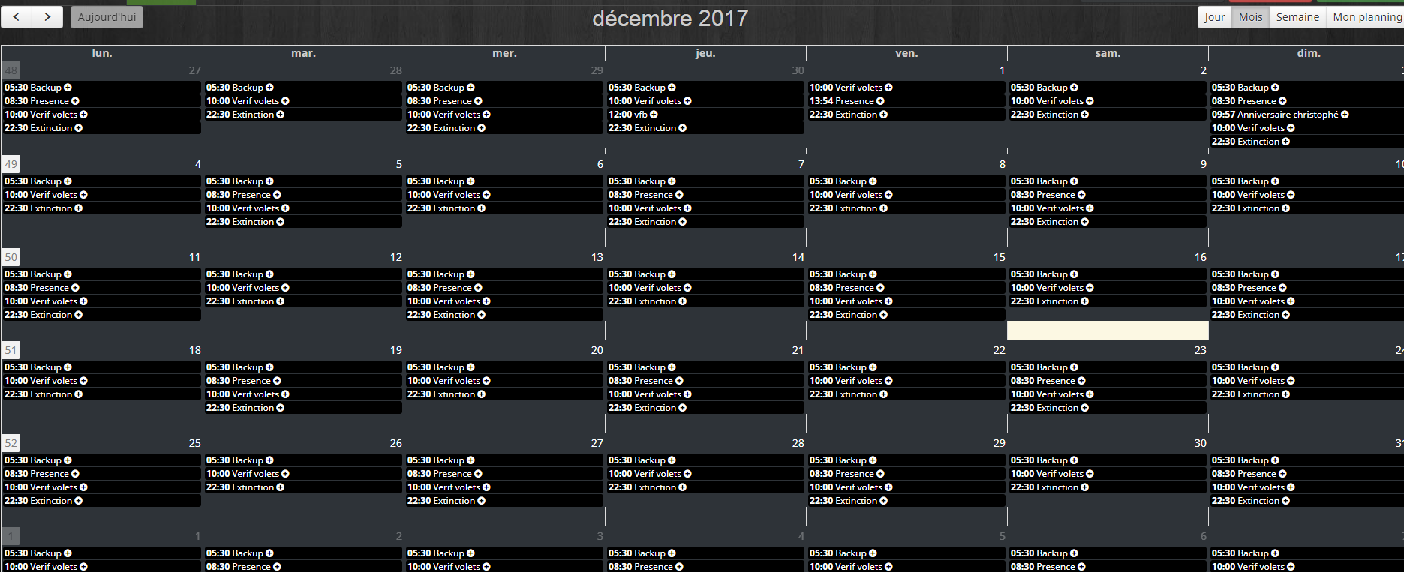
In the Calendar tab, your calendar appears.
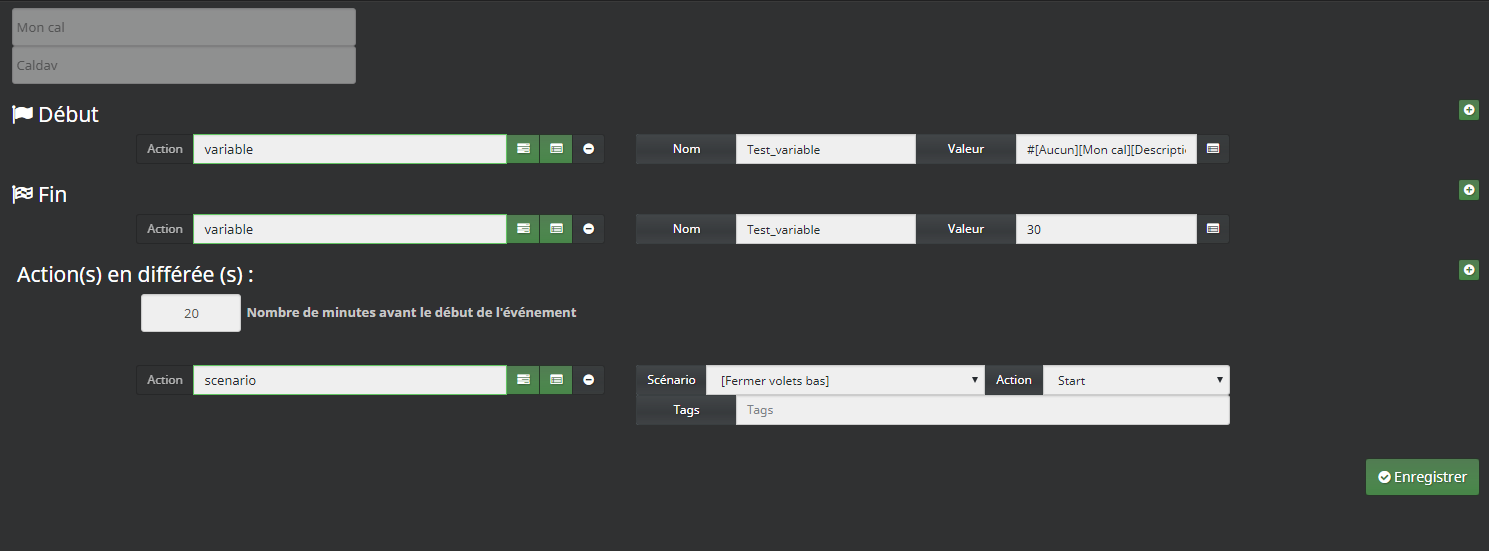
By clicking (once) on a calendar event, a window opens where you can define actions at the start and/or end of the event.
In the Commands tab, your calendar commands appear (see below).
🧩 Events
The real power of this plugin lies in event management.
The plugin is unidirectional and only retrieves events from a calendar (iOS, Google, Nextcloud, CalDAV…). No modifications can be made.
Important — All-day events
All-day events have specific behavior:
- A single "Start" action is executed, at the time configured in All-day actions time (or 07:00 by default).
- There is no end action for all-day events.
- An all-day event spanning multiple days does not trigger every day.
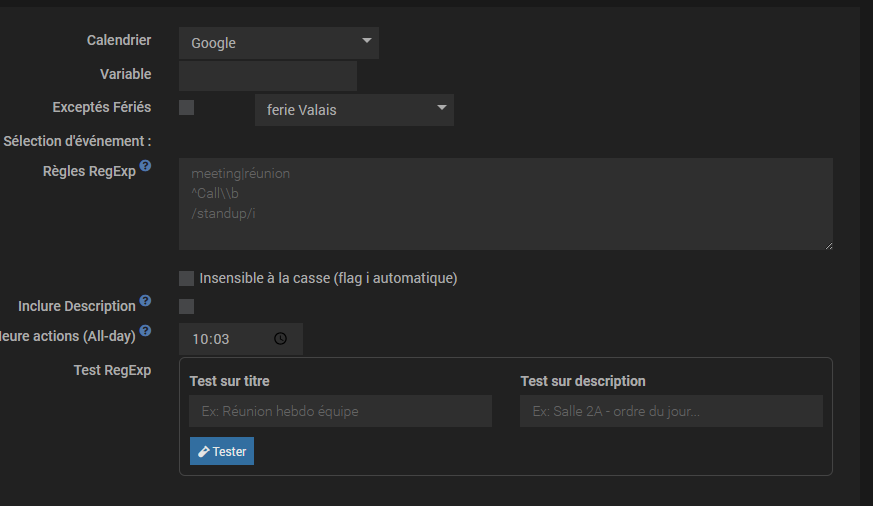
To precisely filter events (title/description), see: Event recognition.
Event recognition
The plugin can match events via:
- the title
- the description
- regex patterns
Configuration examples
🧱 Widgets
Widgets are virtual devices that allow gathering information from different calendars.

Simply select the calendars you want to add to the widget.
To optimize display, widgets only show saved events from the calendar.
🖥 Display
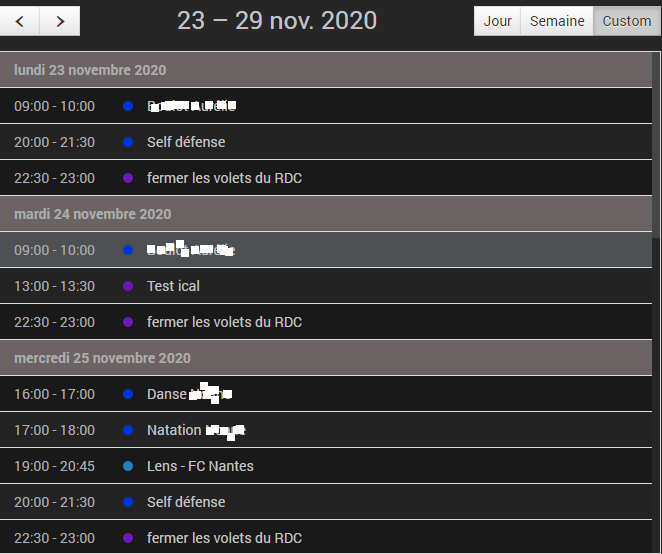
Dashboard rendering. Mobile view OK.
Mini-Cal widget
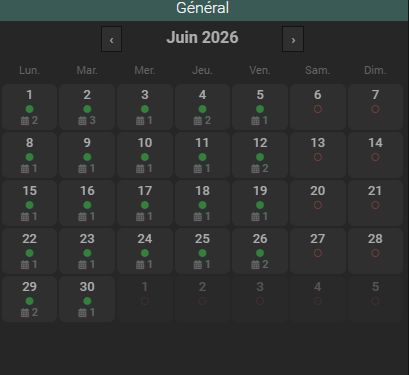
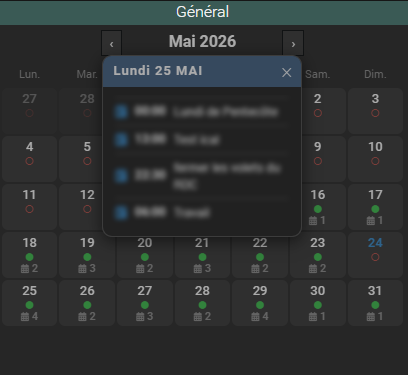
The Mini-Cal option (available in URL, local, CalDAV and widget configurations) replaces the FullCalendar list widget with a monthly grid:
- Displays the current month with previous/next navigation
- Each day indicates the presence of events: green dot and counter if events exist, red dot otherwise
- Days from the previous and next months appear with reduced opacity
- Clicking on a day opens a floating tile listing the day's events (time or "All day" and title)
- A "List" button in the tile switches to the FullCalendar list view, with a "Month" button to return to the grid
Event card widget
Event type devices have a dedicated card widget that displays the next matching event.


The widget displays:
- the month in the colored header
- the day number in large
- the day of the week
- the time (hidden for all-day events)
- the event title
- the location if provided
The header changes color based on event proximity:
| Delay | Color |
|---|---|
| More than 24h | Green |
| Less than 24h | Orange |
| Less than 1h | Bright red |
| Less than 5 min | Dark red |
| Ended | Gray |
| No event | Gray + "No event" |
Light and Dark themes
The calendar widget and event card widget automatically adapt to the active Jeedom theme (Light or Dark).
🎛 Commands
Calendars
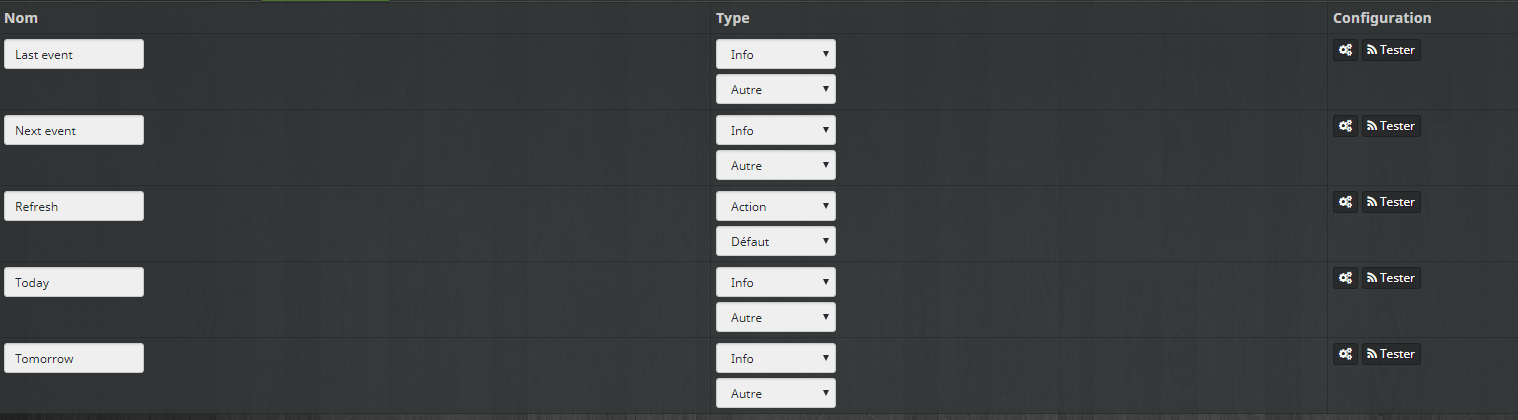
- Last Event
- Is holiday today
- Is holiday tomorrow
- Today
- Tomorrow
- Next
- Event Today
- Event Tomorrow
- hour
- title
- date
- togo
Events
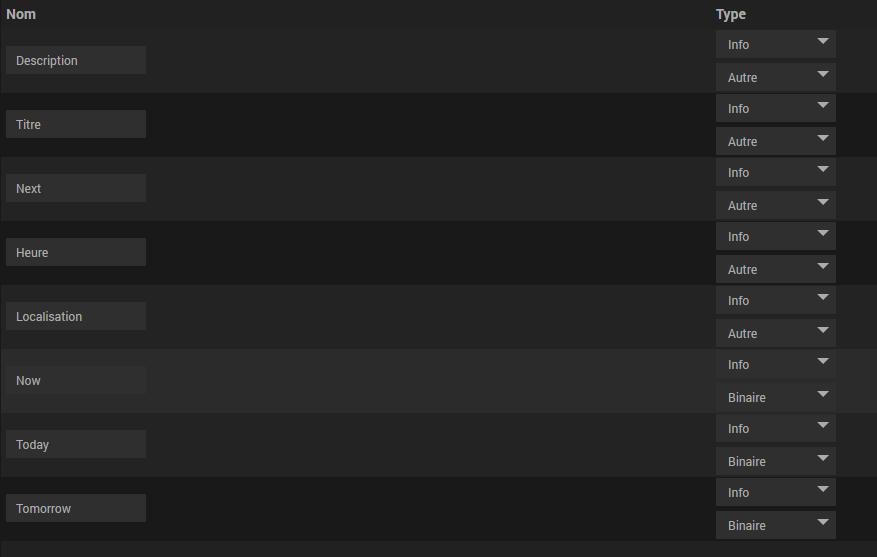
- Today
- Tomorrow
- Description
- Description (Next)
- hour
- title
- date
- Location
- Now
- Next
⚡ Actions
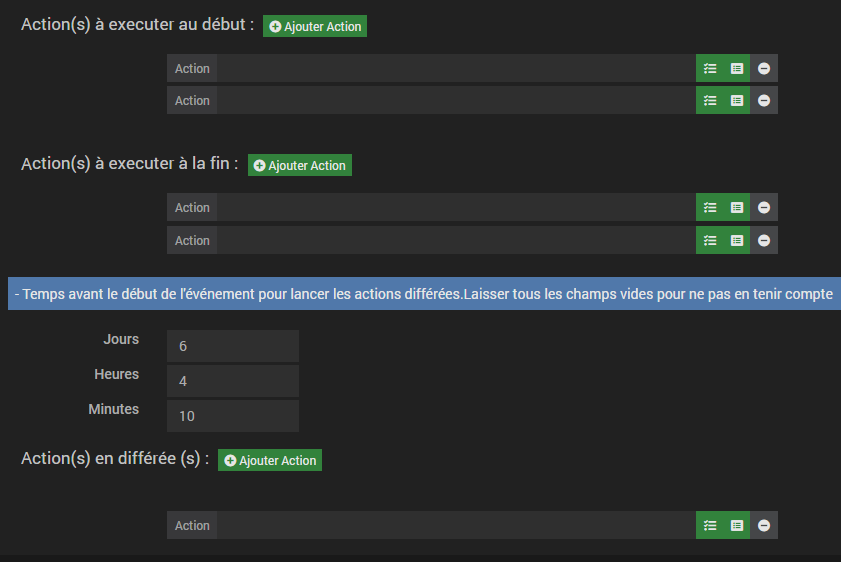
For events, the navigation differs with the Configuration tab where you can define the actions to launch:
- at the start
- at the end
- with a delay
💡 Tips
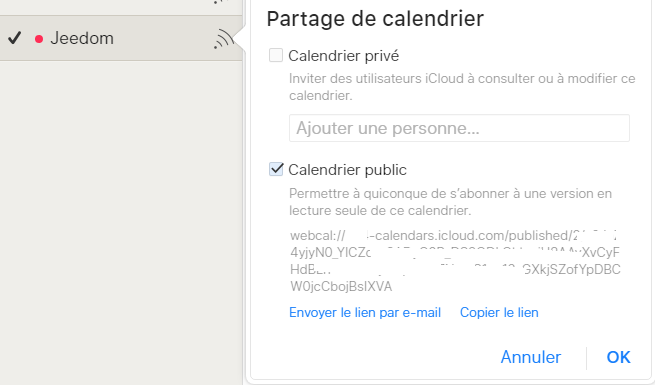
iOS calendar
For iOS (Apple) calendars, you need to set the calendar to public to access it.
Google calendar
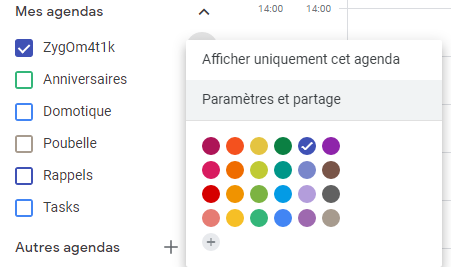
School calendar
http://cache.media.education.gouv.fr/ics/Calendrier_Scolaire_Zone_B.ics
Example — Ligue 1 calendar
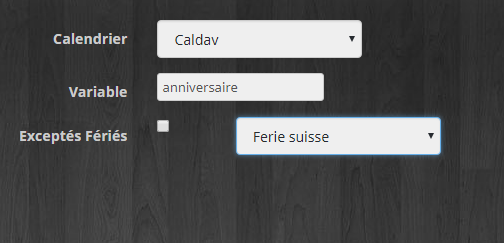
Using variables

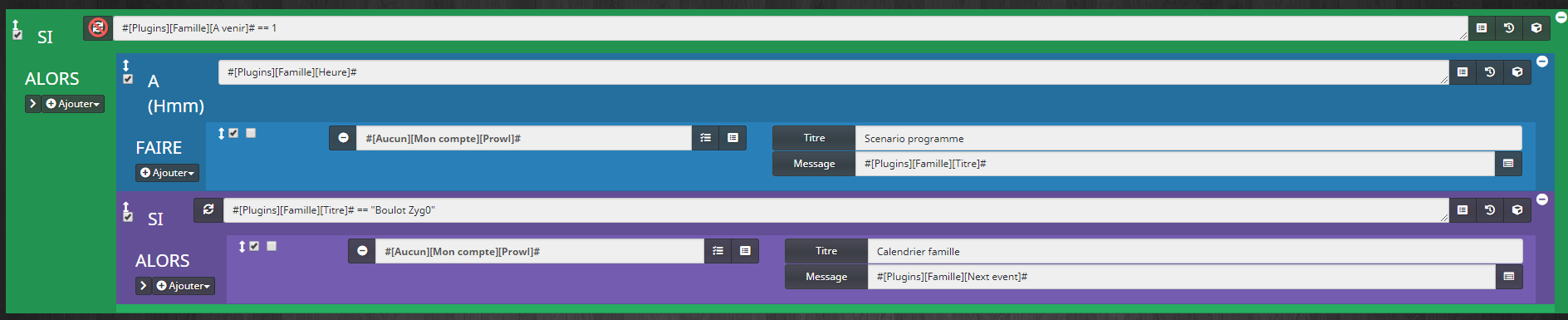
Scenario using calendar information
🆘 Support
In case of issues, 2 options:
- open a ticket via Jeedom
- post on the community forum
Troubleshooting
In case of issues:
- check the URL
- temporarily enable debug