
The Simulation plugin lets you simulate a presence in your home when you are away. It automatically learns your habits (turning lights on/off, opening/closing shutters, etc.) then replays them realistically using a statistical engine.
It is designed to:
- record equipment state changes continuously
- build a daily profile from the recorded history
- replay actions probabilistically, respecting your usual rhythms
- support lights (on/off, color, level), shutters (position) and any binary equipment
The plugin requires no manual programming: it observes and reproduces.
⚙️ How it works
The plugin operates in 3 phases:
1. Learning phase (recording)
As soon as you add equipment to a simulation, the plugin continuously observes state changes via Jeedom listeners. Each event (turning on, turning off, position change...) is stored in the database with:
- the source command
- the date, time and day of the week
- the event type (binary_on, binary_off, level_change, color_change...)
- the associated value (position, color, level)
Recording starts immediately after saving the equipment. The longer the learning period, the more realistic the simulation will be. A minimum of 24 hours of data is required to start a simulation.
2. Profile building phase
From the recorded events, the plugin builds a statistical profile:
- The day is divided into time slots (15 minutes by default)
- For each slot, an activity ratio is calculated (e.g., light on 80% of the time between 7:00 PM and 7:15 PM)
- Recent data has more weight than older data (exponential decay)
- Gaussian smoothing prevents abrupt variations between adjacent slots
- Profile confidence increases with the number of samples
The profile can be separated into weekday/weekend or per day of the week.
3. Replay phase (active simulation)
When the simulation is running, every minute the plugin:
- Determines the current time slot
- Checks the profile ratio for each equipment
- Makes a probabilistic (or deterministic) decision: ON or OFF
- Checks the anti-oscillation guard (minimum delay between two changes)
- Executes the command if needed
The result is a natural and varied behavior: the light doesn't turn on at exactly the same time every day, but within a range consistent with your habits.
📋 Prerequisites
- Jeedom 4.4 minimum
- Node.js installed (the plugin handles automatic dependency installation)
- At least one equipment with info/action commands (light, shutter, plug...)
📥 Installation
1. Installation from the Market
- Go to Plugins > Plugin Management > Market
- Search for Simulation
- Click Install
- Activate the plugin
2. Plugin configuration
After installation, go to the plugin configuration:
- Enable daemon: activates the Node.js daemon for precise action scheduling
- Socket port: daemon TCP port (default: 55130)
- Database tables: the plugin creates its tables automatically. If a message indicates the tables don't exist, click Create plugin tables
3. Installing dependencies
If Node.js is not installed, click Install dependencies on the plugin configuration page. The plugin will install Node.js automatically.
➕ Creating a Simulation equipment
From Plugins > Automation > Simulation, click Add.
Each Simulation equipment represents a set of devices to simulate together (e.g., "Home Simulation", "Ground Floor Simulation").
🔧 Configuration
The equipment is organized in 3 tabs:
| Tab | Role |
|---|---|
| Equipment | General settings (name, parent object, enable/visible) |
| Configuration | Simulation settings, monitored devices, statistical profile |
| Commands | Automatically generated commands (launch, cancel, state) |
🎛️ Configuration tab
This tab is divided into two columns.
Left column: Simulation settings
Mode
The Auto (learning) mode is the only available mode. The plugin automatically learns your habits and replays them.
Enable
Checkbox to enable recording and allow launching the simulation.
Actuators
Allows adding binary commands that serve as external triggers. These actuators can condition the start or stop of the simulation.
Schedule
Time range during which the simulation is allowed to run.
- From / To: start and end times (HH:MM format)
- Cross midnight: check if the range crosses midnight (e.g., 10:00 PM to 6:00 AM)
If the range is empty, the simulation runs 24/7.
Days
Checkboxes to select the days of the week when the simulation is allowed.
Condition
Optional Jeedom expression that must be true for the simulation to launch. Allows conditioning the simulation on a sensor state (e.g., alarm activated, absence detected).
#[Security][Alarm][State]# == 1
Right column: Data and profile
Data management
| Button | Action |
|---|---|
| Data | Opens the recorded events viewer |
| Update Data | Forces a rebuild of the statistical profile |
| Reset | Deletes all recorded data (irreversible) |
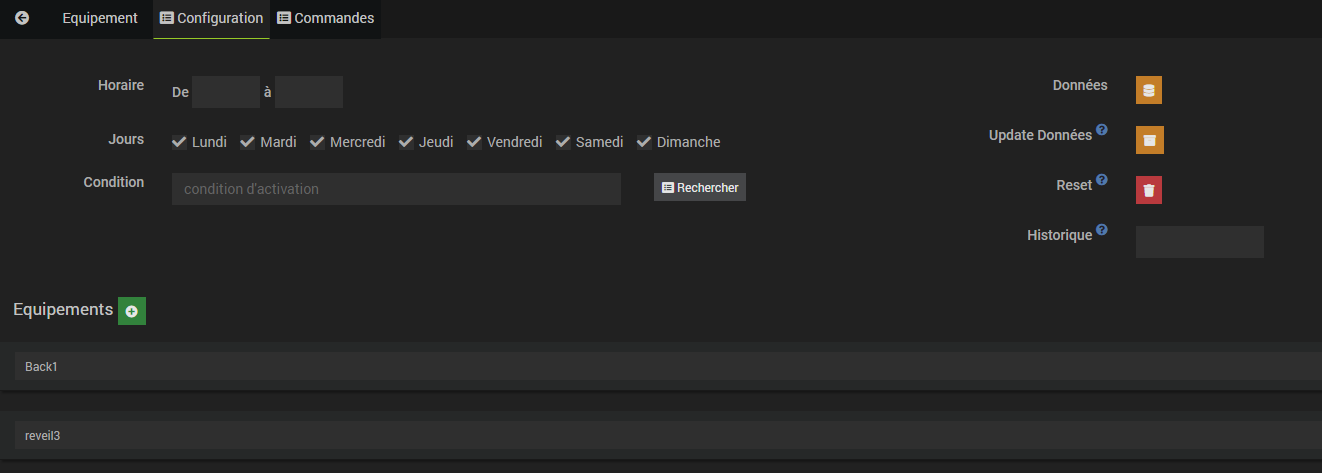
History
Number of days to keep data (default: 15). Beyond this, events are automatically deleted by the daily cron.
Check Keep indefinitely to disable automatic cleanup.
Execution mode
| Mode | Description |
|---|---|
| Real | Commands are actually executed on the equipment |
| Simulation only (dry run) | Actions are only logged (widget + debug logs) without executing real commands |
The dry run mode is ideal for validating behavior before going on vacation.
Statistical profile
| Parameter | Default | Description |
|---|---|---|
| History window | 30 days | Number of history days used to build the profile |
| Slot duration | 15 min | Time slot granularity (minimum 5 min) |
| Minimum samples | 5 | Minimum number of days with data for a slot to be reliable |
| Min. interval between actions | 20 min | Anti-oscillation delay between two state changes of the same group |
| Profile mode | Weekday/Weekend | Separates the profile into weekdays and weekends, or per individual day |
| Decision strategy | Probabilistic | Decision-making mode |
Decision strategies
- Probabilistic: the ON/OFF decision is random, weighted by the profile ratio. If the light is on 70% of the time at 8 PM, there's a 70% chance it will turn on. This creates natural variation.
- Deterministic: the light turns on if the ratio exceeds a fixed threshold (default 0.60). More predictable, but less natural.
🏠 Equipment section
The lower part of the Configuration tab lists the equipment to simulate.
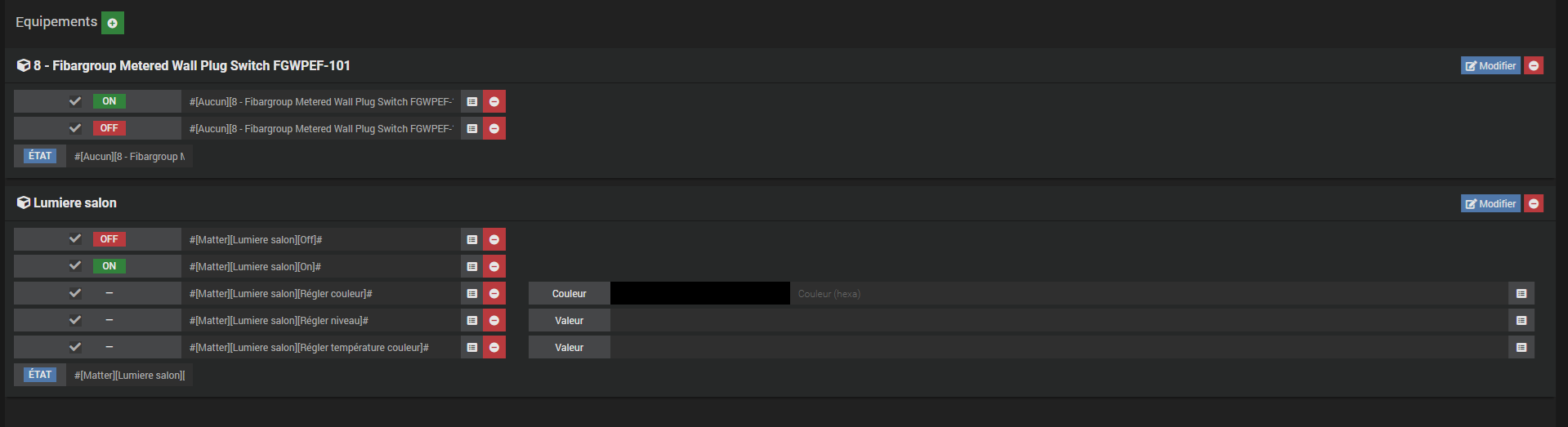
Click the + button to add equipment. For each added equipment, the plugin automatically detects available commands and assigns them a role:
Group families
| Family | Usage | Source info | Actions |
|---|---|---|---|
| binary | Lights, on/off plugs | Binary info command (state) | ON + OFF |
| position | Shutters, blinds | Numeric info command (0-100%) | Position slider and/or open/close/stop |
| level | Dimmers | Numeric info command | Level slider + optional pre-turn-on |
| color | RGB color bulbs | String info command | Color + optional temperature + pre-turn-on |
The plugin automatically deduces the family and roles from Jeedom generic_types and command names. You can manually adjust the associations if needed.
For each equipment, a card displays:
- The equipment name
- Detected commands with their role (STATE, ON, OFF, Color, Value...)
- Options for each command (hex color, slider value...)
- An Edit button to adjust commands
📊 Recorded data
The Data button opens a window showing all recorded events:
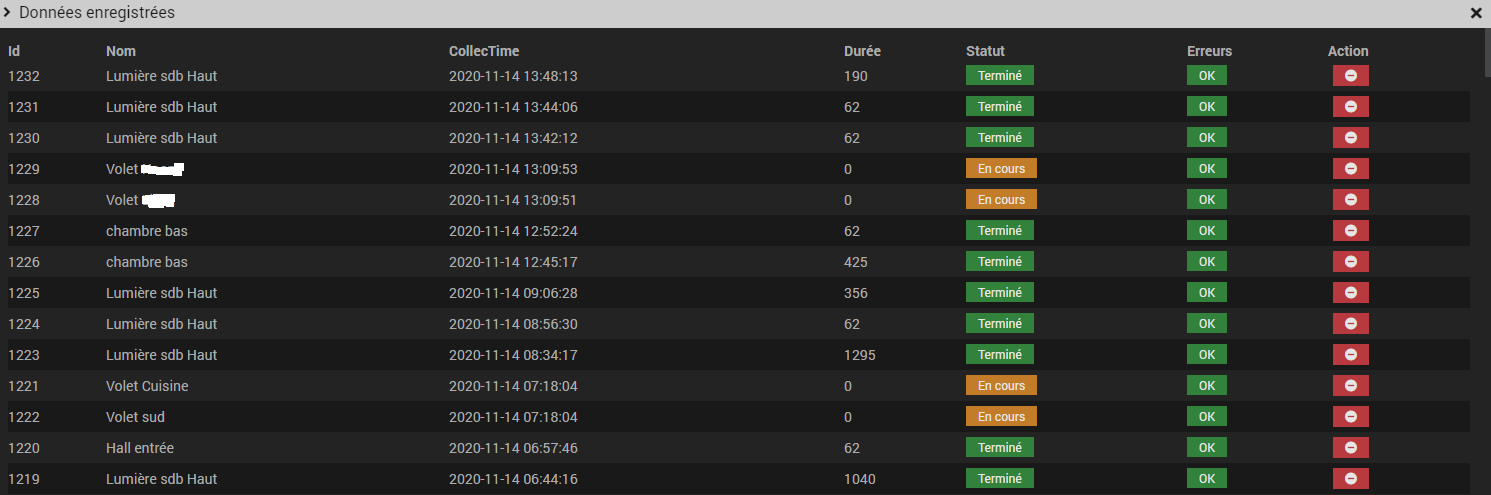
For each event:
| Column | Description |
|---|---|
| Id | Unique identifier |
| Name | Source equipment name |
| CollecTime | Event date and time |
| Duration | State duration in seconds |
| Status | Completed or In progress |
| Errors | OK or error detail |
| Action | Button to delete the event |
📡 Commands
The plugin automatically generates 3 commands:
| Command | Type | Description |
|---|---|---|
| launch | action | Starts the simulation |
| cancel | action | Stops the simulation |
| etat (state) | binary info | Current state (1 = simulation active, 0 = inactive) |
These commands can be used in scenarios, virtuals and any other Jeedom plugin.
🖥️ Dashboard and Mobile Widget
The widget displays a real-time log of actions executed during the simulation:
- Status indicator: green (active) or gray (inactive) icon in the top right
- Log: scrollable list of executed actions with timestamps
- Reset button: clears the widget log
In dry run mode, the log shows actions that would have been executed without actually applying them.
🩺 Health page
Accessible from the plugin page via the Health button, this page checks the overall status:
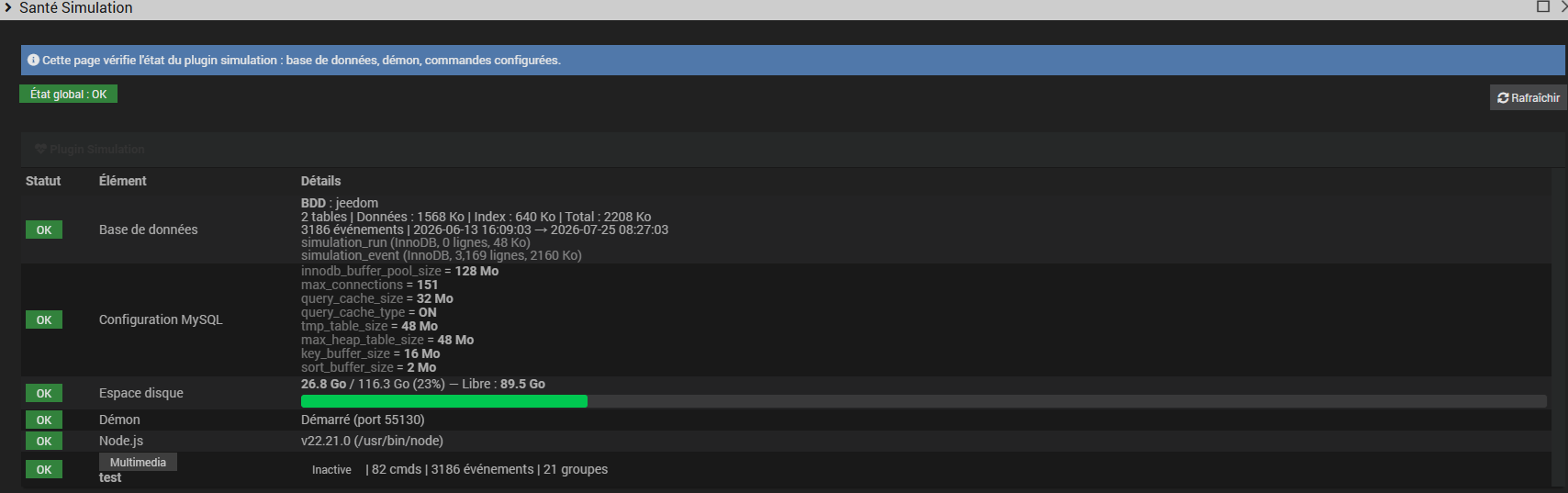
| Element | Check |
|---|---|
| Database | Tables present, event count, size |
| MySQL configuration | Key parameters (buffer pool, cache, etc.) |
| Disk space | Sufficient free space |
| Daemon | Node.js daemon status and port |
| Node.js | Version and path |
| Equipment | Status, number of commands and configured groups |
🔄 Node.js Daemon
The plugin uses a Node.js daemon to schedule actions precisely.
- The daemon receives jobs via a local TCP socket (port 55130)
- It executes actions at the scheduled time and calls back the PHP plugin via HTTP callback
- If the daemon crashes, the minute cron automatically restarts it (watchdog)
- If the daemon is disabled, the plugin falls back to the Jeedom cron system
The daemon is fully transparent: you don't need to interact with it.
📝 Using in scenarios
Start simulation on departure
// Condition: alarm activated (you left)
IF #[Security][Alarm][State]# == 1
THEN
  #[Home][Simulation][launch]#
END IF
Stop simulation on return
IF #[Security][Alarm][State]# == 0
THEN
  #[Home][Simulation][cancel]#
END IF
Check simulation state
IF #[Home][Simulation][etat]# == 1
THEN
  // Simulation is running
END IF
💡 Practical usage examples
Classic vacation
- Equipment: living room lights, kitchen, bedroom + shutters
- Schedule: 7:00 AM to 11:00 PM
- Condition:
#[Security][Alarm][State]# == 1 - History: 30 days
- Result: lights turn on and off according to your real habits, shutters move naturally
Extended weekend
- Equipment: lights + TV (smart plug)
- Schedule: empty (24/7)
- Days: all
- Mode: dry run first to validate, then real
- Result: simulated presence including at night (nightlight, bathroom visits)
Simulation with colors
- Equipment: Hue/Matter bulbs with color and level
- The plugin records color and brightness changes
- During replay, it reproduces the exact ambiances (warm color in the evening, cool in the morning)
✅ Best practices
- Let the learning run for at least a week before the first simulation for a representative profile
- Use dry run mode to validate behavior before actually leaving
- Start with a few devices before adding more
- Verify that auto-detected commands are correct (ON/OFF, not inverted)
- The Weekday/Weekend mode is recommended: your habits generally differ between the two
- If the simulation seems too repetitive, reduce the slot duration (10 or 5 min) for more granularity
- Check the Health page if you have doubts about the operation
🛠️ Troubleshooting
Simulation won't start
- Verify the equipment is enabled (checkbox checked)
- Verify the condition is met (if configured)
- Verify the current day is allowed
- Verify the current time is within the configured range
- Verify there are at least 24 hours of recorded data
- Check plugin logs (debug level)
Equipment is not being recorded
- Verify equipment is added in the Equipment section
- Save the simulation equipment (listeners are created on save)
- Verify source info commands are info commands (not action)
Daemon won't start
- Verify Node.js is installed (plugin configuration page)
- Verify port 55130 is not used by another service
- Reinstall dependencies if needed
- Check
simulation_daemonlogs
Simulation is too repetitive
- Increase the history window (30-60 days) for more variety
- Reduce the slot duration (10 or 5 min)
- Verify the strategy is Probabilistic (not Deterministic)
- Reduce the min. interval between actions (10 min instead of 20)
Shutters don't move
- Verify the source info command is a numeric command (0-100)
- Verify the slider action command is properly configured
- Verify the position role is correctly assigned