Chat PWA — One Home, Three Rooms
With ntfybridge, turn your Jeedom installation into a private messaging app accessible from your phone, tablet or computer.
In this example, three users share the same interface:
- Dad: administers Jeedom and monitors the house.
- Mams: uses home automation commands and the family chat.
- Lea: chats with her parents and views authorized information.
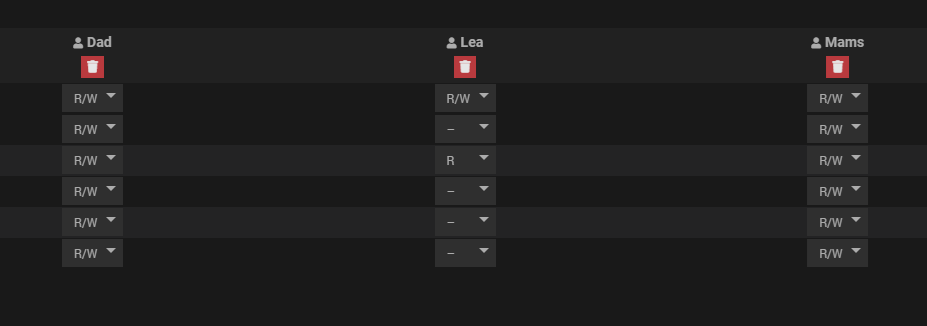
They have three rooms: 🏠 Home, 🖥️ Jeedom and 💬 Family.
🏠 Home Room — Talking to Jeedom
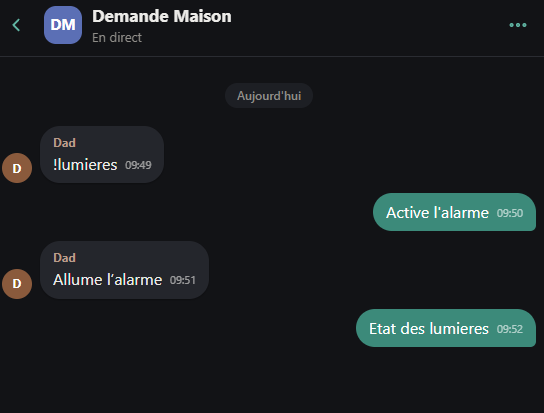
In the ntfybridge equipment configuration, two topics are defined: the listen topic (on which Jeedom receives your commands) and the response topic (on which Jeedom sends its replies). In Family Chat, this translates into two distinct rooms: you send your messages in the room linked to the listen topic, and replies arrive in the room linked to the response topic.
🏠 **Light Status**

💡 **Living Room**: {#[Matter][Living Room][State]#|0:⚫ Off|1:🟡 On#}

💡 **Kitchen**: {#[Matter][Kitchen][State]#|0:⚫ Off|1:🟡 On#}

💡 **Bedroom**: {#[Matter][Bedroom][State]#|0:⚫ Off|1:🟡 On#}

──────────────

🏡 *Status sent by Jeedom*
The {#[Object][Equipment][Command]#|0:text|1:text#} syntax inserts the value of a Jeedom command with a readable label based on its binary state.
Example — Responses Tab

Example — Actions Tab

Each rule accepts multiple comma-separated keywords — Jeedom responds or acts as soon as one of them is recognized in the message.
Example: lights, light status, !lights triggers the same rule regardless of the phrasing.
For sensitive actions (open the gate, disarm the alarm…), enable the Confirmation option in the rule. Jeedom sends a notification with Yes ✓ / No ✗ buttons before executing anything. The token expires after the configured timeout (default: 60 s).
Listen topic — you send your commands:
Response topic — Jeedom replies:
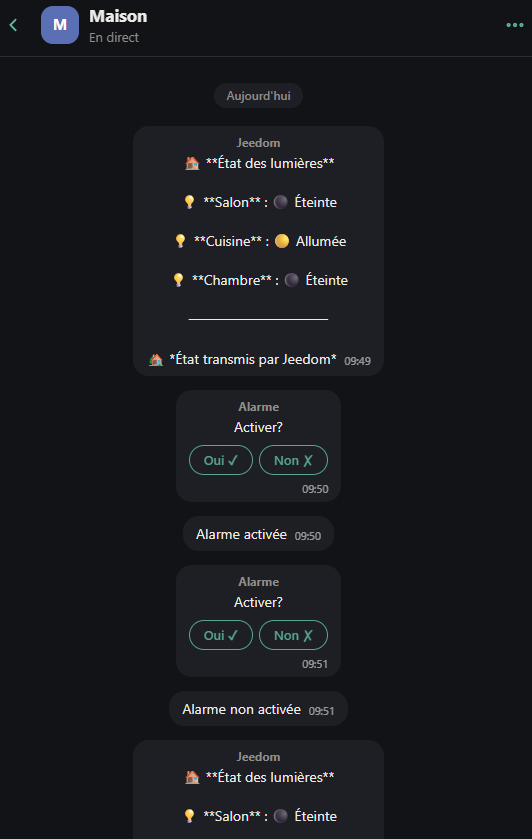
Messages can trigger Jeedom actions and results are sent back directly into the room. The keywords and responses shown here are examples to configure in the Responses and Actions tabs of the ntfybridge equipment.
🖥️ Jeedom Room — Receiving Alerts
This room centralises system notifications automatically, without mixing technical messages with family discussions.
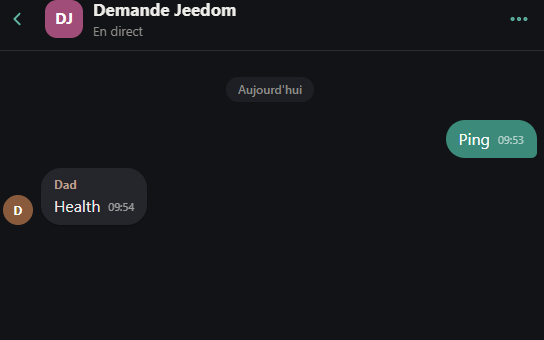
Listen topic — alert requests and automatic Jeedom reports:
Response topic — reports:
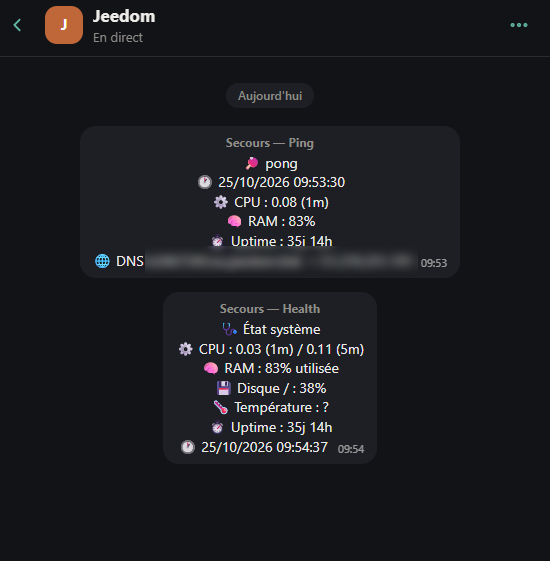
Alerts, script results and monitoring information arrive in a dedicated room. Authorized users can also exchange messages there.
💬 Family Room — Real Private Messaging
This room works like a standard conversation, with no Jeedom interaction.
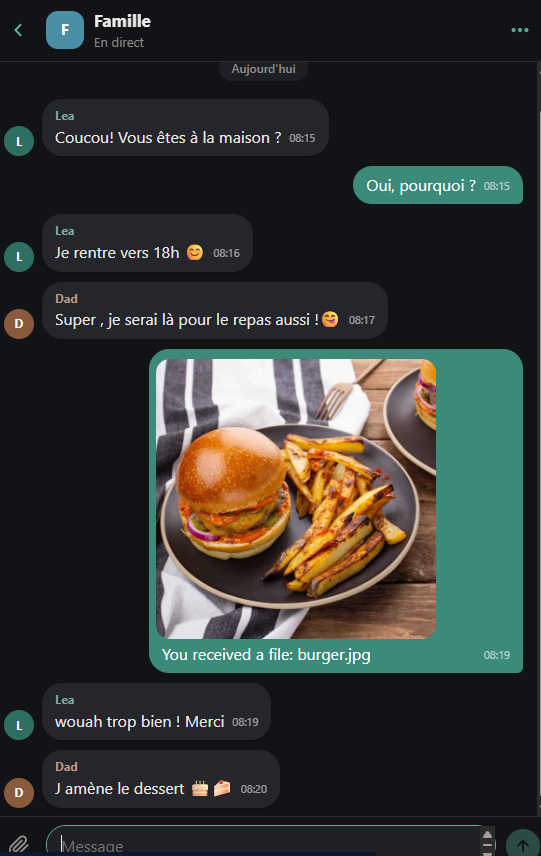
Family members can chat, share images and files, without using an external messaging service.
📱 A PWA Installed on the Phone
The chat can be added to the home screen of an iPhone or Android device, like a native app.
Each family member gets:
- Their rooms and conversations.
- Push notifications for the rooms they subscribe to.
- Message, image and file sending.
- Rooms accessible according to their ntfy permissions.
Conversations remain hosted on your own server.
🔐 Private Access with Tailscale
For a fully private setup, the chat can be accessed via Tailscale — without exposing Jeedom on the internet.
HTTPS and Web Push notifications are handled automatically by tailscale serve. See the getting started guide → for configuration.
Three Use Cases, One Interface
| Room | Use |
|---|---|
| 🏠 Home | Interact with home automation — commands, questions, confirmations |
| 🖥️ Jeedom | Receive alerts and monitor services |
| 💬 Family | Chat, share photos and files |
With ntfybridge, the same PWA becomes both a family messenger and a communication interface with your connected home.