Todo Plugin
The Todo plugin lets you create task lists in Jeedom.
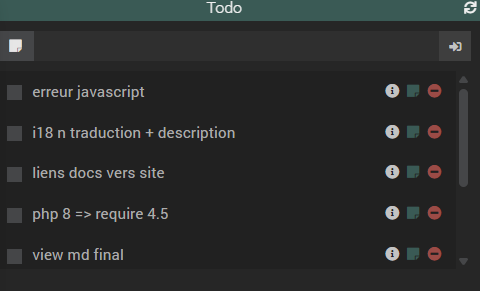
Each list appears as a widget on the Dashboard, with:
- quick task addition
- checkbox for "completed"
- an "Info" window (note, date, costs)
✅ What is it for?
Practical examples:
- "Shopping": milk, bread, batteries…
- "Home": change filter, take out bins…
- "Projects": buy paint + track the budget
- "Reminders": renew a document, call someone…
🔧 Prerequisites (simple)
- Jeedom 4.5 minimum
- Debian 11 minimum
- PHP: Jeedom 4.5 works with PHP 8
The plugin does not require any dependency installation: you can use it right away.
🚀 Installation
1) Install from the Market
- Go to Plugins → Plugin Management → Market
- Search for Todo
- Click Install
- Activate the plugin
➕ Create a task list
- Go to Plugins → Organization → Todo
- Click Add
- Give your list a name (e.g. "Shopping")
- Save

✅ A "list" = a Jeedom device.
🧾 Add and manage tasks (the widget)
Once the list is created, you can display it on your Dashboard.
Add a task
- Type the text in the field
- Click the validate button to the right of the field
Complete a task
- Check the ✅ box ➡️ The task is considered done and disappears from the active list.
Delete a task
- Click the delete icon
📝 Task "Info" window (note, date, costs)
On each task, you have a "note" icon. It opens a window with additional information.
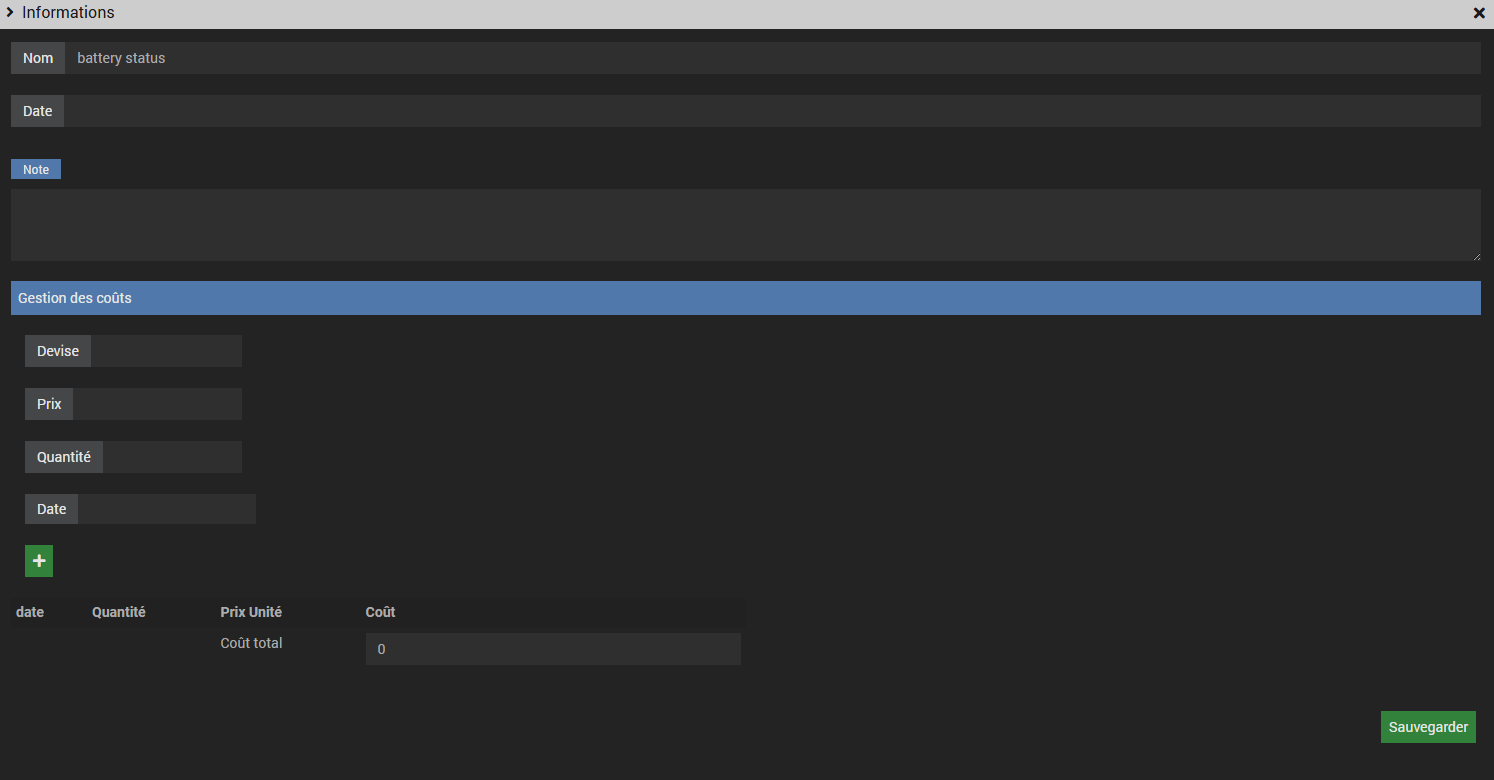
1) Note (free text)
You can write a note to remember a detail:
- product reference
- explanation
- link
- important reminder
2) Date (deadline)
You can choose a date (e.g. "to do before Saturday").
The icon changes color:
- Green: future date
- Orange: today
- Red: overdue date
3) Cost management (budget)
The window also lets you track a budget:
- Currency (CHF / € / other)
- Unit price
- Quantity
- Detailed purchase lines
- Automatic total calculation
Example:
- Currency: CHF
- Quantity: 2
- Price: 12.50 ➡️ Total = 25.00 CHF
⚙️ List settings
In a list, you will find:
- Name
- Object (room)
- Enable
- Visible
📌 Available commands (for scenarios)
Each list has commands usable in scenarios.
Main commands
- New todo (Action) → Add a task automatically
- List (Info) → Full list content
- Refresh (Action) → Refresh
- Remove all (Action) → Delete all tasks
- Cost (Info) → Simple total
- Global cost (Info) → Detailed total
💡 Tips & usage ideas
✔ Add a task automatically
Example: washing machine finished → create "Hang the laundry".
In a scenario: Action → New todo Message → Hang the laundry
✔ Send the list by notification
Use the List command Example: "Shopping list: #List command#"
✔ Monitor a budget
Use Global cost Create a scenario: If global cost > 500 CHF → send an alert.
✅ Conclusion
The Todo plugin stays simple:
- Create a list
- Add tasks
- Add notes / dates / costs
- Automate with scenarios