Prerequisites
- Debian 12 minimum
- Docker installed on the system (the Docker Management plugin can install it for you)
Running Jeedom inside a Docker container is not supported for now, unless you know how to configure Docker-in-Docker.
Installation
- Install the plugin from the Market
- Enable the plugin — dependencies install automatically
- Once dependencies are installed, check the plugin Health page

- If the Docker Group (www-data) check is NOK, click the Restart Apache button in the plugin configuration (only needed once)
- Start the daemon
First start
- Go to the MatterBridge Console (button at the top of the plugin page)

- Click Start to verify everything works
- Click Install MB plugin then Restart
- In the logs, you should see:
Loading plugin matterbridge-jeebridge type DynamicPlatform
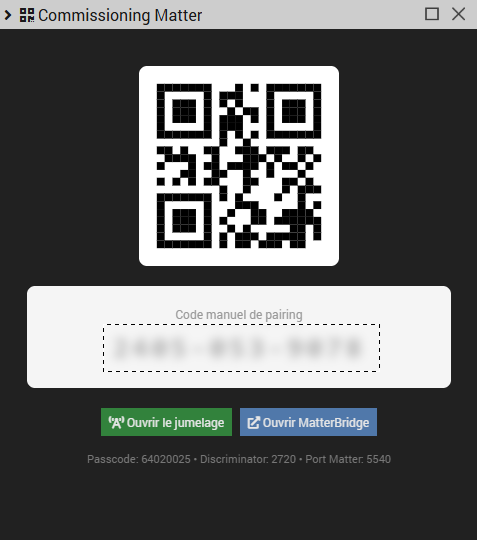
Commissioning
Add the bridge to your controller (Alexa, Apple Home, Google Home) via the plugin commissioning page by scanning the displayed QR code.
Adding devices
Click the Add device button — a window opens with three choices:
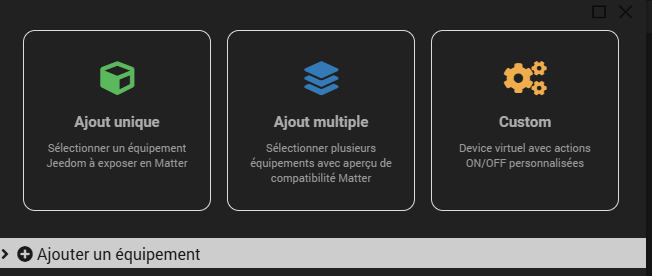
- Single — select an existing device
- Multiple — select several devices grouped by plugin. All devices are shown, but truly compatible ones (with recognized generic types) are visually distinguished
- Custom — create a virtual ON/OFF switch and associate a series of configurable actions directly in the plugin. Similar to the Mode plugin's entry/exit actions
For example, name a custom device "TV" and say:
- "Turn on the TV" — triggers the actions configured on ON (turn on the TV, set ambient lighting mode for TV)
- "Turn off the TV" — triggers the actions configured on OFF (turn off the TV, restore default lighting mode)
Synchronization
Once devices are added, click Synchronize and wait a few moments. Then go to the Alexa, Apple Home or Google Home apps to configure your devices.
Rename your devices before synchronizing to match how you want them to appear in the apps.
Health page
Accessible via Analysis > Health or from the plugin page, the health check verifies:
- Docker Group (www-data) — the PHP process has access to the Docker socket
- Docker — Docker is installed and accessible
- MatterBridge Container — the container is running
- MatterBridge API — the local API responds on the configured port
- Matter Port — the Matter port (5540 by default) is listening
- IPv4 / IPv6 Interfaces — network interfaces available in the container
- MatterBridge to Jeedom — the container can call back Jeedom (authenticated callback)
- Matter Fabrics — paired controllers (Alexa, Apple Home, Google Home)
- Synchronized devices — comparison between Jeedom devices and MatterBridge devices
- Matter / mDNS Discovery — informational reminder, only verifiable from the controller side (IPv6 and multicast UDP 5353 must be allowed on the LAN)
MatterBridge Console
The console provides direct access to the MatterBridge web interface. It is accessible via the Console button at the top of the plugin page.
From the console you can:
- Start / Stop MatterBridge
- Install the plugin matterbridge-jeebridge in MatterBridge
- Restart MatterBridge after plugin installation
- View logs in real time for troubleshooting
Tested compatibility
- Apple Home
- Alexa